
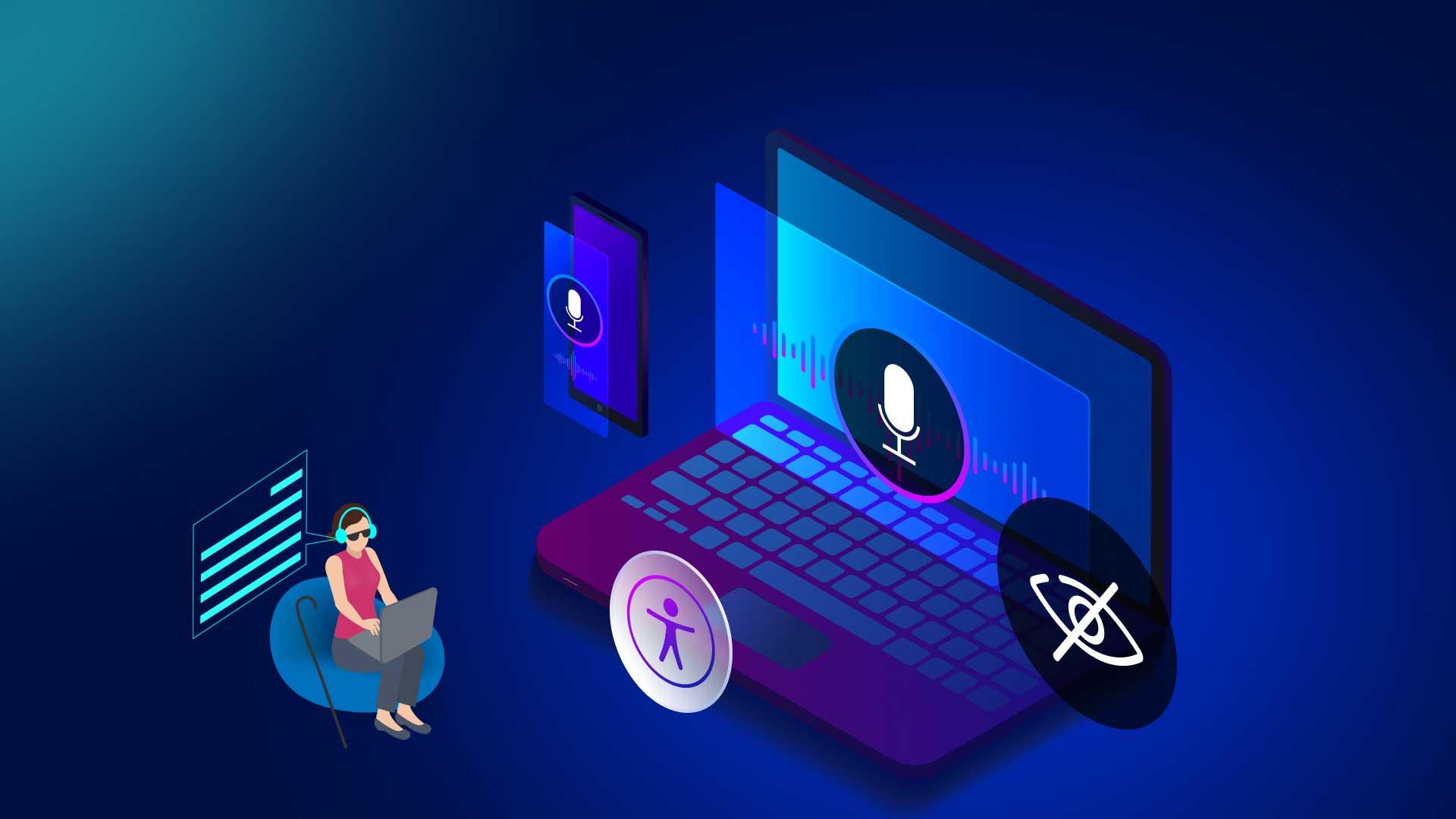
10 Essential Steps for Ensuring Digital Accessibility in Educational Tools
In today’s interconnected world, digital accessibility is not just a legal requirement but a moral imperative—especially within educational tools and e-learning platforms. Making educational content accessible allows every learner, including those with disabilities, to participate fully in educational opportunities. Whether you’re a developer, instructional designer, or educator, integrating accessibility from the outset ensures an inclusive, effective learning experience for all.
Why Digital Accessibility in Education Matters
According to the World Health Organization, over 1 billion people live with some form of disability. In education, this means countless students depend on accessible online learning tools to access curricula, resources, and assessments. beyond compliance with laws like the Americans with Disabilities Act (ADA) and Section 508, accessible design fosters diversity, equity, and greater academic success.
- Diversity & Inclusion: welcomes all students irrespective of their abilities.
- legal Compliance: Reduces risk of lawsuits and fines for educational institutions.
- Improved Usability: Enhances overall interface for everyone—accessibility frequently enough leads to better design.
- Search Engine Optimization (SEO): Proper use of headings and alt text helps your content rank higher.
10 Essential Steps for Ensuring Digital Accessibility in Educational Tools
Ready to make your educational software or e-learning platform truly accessible? below are 10 actionable steps you can implement today. Each step promotes accessibility, usability, and a richer educational experience for all users.
1. Use Semantic HTML & Proper Heading Structure
- Structure content using HTML5 elements (
,
- Utilize header tags (
h1toh6) hierarchically for clear data architecture. - Screen readers rely on proper structure for navigation; a logical sequence aids all users.
2.Ensure Sufficient Color Contrast
- Text and background colors should meet WCAG AA/AAA guidelines (at least 4.5:1 ratio for normal text).
- Use online tools like WebAIM Contrast Checker to validate color choices.
- Avoid using color as the only means to convey information; combine with icons or patterns.
3. Add Meaningful Alt Text to Images
- All images need descriptive,succinct choice text (
altattribute). - Decorative images should have empty alt (alt=””) to be ignored by assistive technologies.
- Informative diagrams or charts require detailed descriptions for users with visual impairments.
4. Design Keyboard-Accessible Navigation
- All interactive elements (links, buttons, menus) must be usable via keyboard (Tab, Shift+Tab, Enter, Space).
- A clear “focus indicator” should be visible as users tab through elements.
- Test using only a keyboard to uncover navigation barriers.
5. Provide Captions and Transcripts for Multimedia
- Add synchronized captions to all video content.
- Offer text transcripts for audio materials—this supports deaf, hard-of-hearing, and non-native speakers.
- For live sessions, consider real-time captioning services or automated tools.
6. Use Accessible Forms and Input Fields
- Label every input field explicitly using
elements. - Provide clear instructions and error messages that are announced by screen readers.
- Group related inputs with
7. Support Screen Reader Compatibility
- Test your educational tool with popular screen readers such as JAWS,NVDA,or VoiceOver.
- Implement ARIA (Accessible Rich Internet Applications) roles and attributes when necessary, but do not overuse them.
- Keep the interface logical for both visual and non-visual navigation.
8.Avoid Time-Based Restrictions
- Allow users to adjust or extend time limits on quizzes or exercises.
- Warn learners when sessions are about to expire.
- Time adaptability accommodates students with cognitive or motor impairments.
9. Test with Real Users and Assistive Technologies
- Involve students with disabilities in usability testing.
- Gather feedback and observe challenges to identify accessibility gaps.
- Continually update your tool based on real-world use cases and evolving guidelines.
10. Offer Extensive Accessibility Documentation & Support
- Create an Accessibility Statement outlining features, limitations, and contact information for support.
- Document compatibility with different assistive technologies.
- Provide training resources to help users and educators effectively use the platform.
Practical Tips for Enhancing Digital Accessibility
- Stay updated by following WCAG (Web Content Accessibility Guidelines) and the latest regulations.
- Leverage automated accessibility checkers, but also perform manual audits for accuracy.
- Incorporate accessibility into your design, development, and content creation process from the beginning—its more efficient and cost-effective.
- Collaborate with accessibility experts or consultants if possible.
Case Study: Accessibility Success in an E-Learning Platform
“At our university, we implemented digital accessibility best practices across all our online course platforms. By adding captions to lecture videos,improving keyboard navigation,and consulting students using screen readers,we saw a 27% increase in course completion rates among students with disabilities. Beyond compliance, these changes improved the user experience for all students and staff.”
First-Hand Experience: Making Small Changes, Seeing Big Impacts
As an instructional designer, I began by simply restructuring content with proper headings and adding descriptive alt text to images. The feedback from visually impaired students was immediate and positive—they could navigate lessons independently and contribute more actively in discussions. Digital accessibility isn’t about a one-time fix, but about ongoing advancement and an inclusive mindset.
Conclusion: Build an Inclusive future through Digital Accessibility
Digital accessibility in educational tools isn’t just about meeting legal standards—it’s about empowering every learner to achieve their best. By following these 10 essential steps and fostering a culture of continuous improvement, you can create a more equitable, engaging, and successful learning surroundings.Embrace accessibility from the ground up, and your educational content will reach more students, drive better outcomes, and set a higher standard for inclusive education.
For more resources, explore the W3C Accessibility Basics and the Section 508 Guidelines.